
In July 2023, Microsoft released UET Consent Mode. Four months later, Google introduced Consent Mode v2 and was the first to make implementation mandatory, setting a deadline of March 6, 2024.
Now, Microsoft has taken a similar approach: on March 17, 2025, Microsoft informed all Microsoft Advertising clients using Universal Event Tracking (UET) in the EEA, UK, and Switzerland that they must implement UET Consent Mode by May 5, 2025.
Continue reading to understand what it is, how it can affect your Microsoft ad campaigns, and how to set it up with Cookie Information CMP. Follow this guide to make sure your tracking stays active.
What is Microsoft UET Consent Mode?
Microsoft’s Consent Mode is Microsoft’s consent framework for UET: a privacy feature that adjusts how Microsoft Advertising tracking tags collect data based on your website visitor’s cookie preferences. It allows you to comply with privacy laws like the General Data Protection Regulation (GDPR) and Digital Markets Act (DMA) while preserving accurate conversion tracking.
How Advertising Consent Mode works
UET tags are key to Microsoft’s consent-based tracking. They track user interactions and measure conversions – like purchases, sign-ups, or downloads – to show how well your ads are performing.
With Microsoft’s tracking consent feature, UET tags adapt based on user consent settings for Microsoft Advertising (IAB vendor ID 1126). These settings affect how cookies work:
- If consent is granted: UET reads and writes both first-party and third-party cookies.
- If consent is denied: UET does not read first-party cookies. It only accesses third-party cookies for fraud prevention and spam detection – not for advertising.
This ensures tracking respects user privacy while still providing advertisers with key insights.
Why has Microsoft made UET Consent Mode mandatory?
Microsoft has made the UET consent setting mandatory for three main reasons: compliance with the Digital Markets Act (DMA), General Data Protection Regulation (GDPR), and ePrivacy Directive.
These laws set strict rules for collecting and processing user data, requiring clear consent before tracking.
The Digital Markets Act (DMA)
The Digital Markets Act (DMA) is an EU regulation that applies to “gatekeepers” – large tech companies like Microsoft that operate major digital platforms. One of its key goals is to give users more control over their data by requiring clear consent before tracking and processing personal information.
Since Microsoft Advertising relies on data collected across its services (e.g., Bing, LinkedIn, Outlook) for targeted ads, it must comply with these rules. Making UET Consent Mode mandatory helps ensure compliance and shifts responsibility for obtaining consent to advertisers – while also reducing Microsoft’s legal risk.
The General Data Protection Regulation (GDPR)
The General Data Protection Regulation (GDPR) applies to all businesses processing personal data of EU residents and requires a valid legal basis for data collection – most often, user consent in digital advertising.
Microsoft Advertising tracks user interactions to improve targeting, measure conversions, and retarget users. Under GDPR, these activities can only happen with explicit consent. By enforcing UET Consent Mode, Microsoft ensures:
- Advertisers track only users who have opted in.
- Legal responsibility for consent shifts to advertisers.
- Reduced risk of GDPR violations and fines.
Without UET Consent Mode, Microsoft cannot legally track ad interactions or measure conversions for users who decline consent.
The ePrivacy Directive
The ePrivacy Directive governs how tracking technologies like cookies and pixels are used. While GDPR regulates how personal data is processed, ePrivacy focuses on when and how tracking begins – regardless of whether personal data is collected.
Microsoft Advertising relies on cookies and UET tags for tracking, conversion measurement, and retargeting. To comply with ePrivacy, Microsoft must ensure:
- No tracking before consent: Advertisers cannot load UET tags unless users opt in.
- Consent is clear and informed: Users must know what data is collected and why.
- Rejecting tracking is as easy as accepting: No dark patterns or tricky opt-out options.
UET Consent Mode helps Microsoft enforce these requirements by preventing tracking before consent, adjusting data collection based on user choices, and ensuring compliance with ePrivacy rules.
What happens if you don’t implement UET Consent Mode?
If you use UET but don’t implement Microsoft’s cookie consent signal, Microsoft Advertising will stop tracking UET-based conversions and updating your remarketing lists. This could hurt your campaign performance by disabling key tracking, targeting, and other features that rely on UET data and ad tracking permissions.
To avoid disruptions and keep your Microsoft ad campaigns running effectively, it’s crucial to implement the correct UET consent setting and ad tracking permissions.
How to set up Microsoft’s cookie consent signal with Cookie Information and Google Tag Manager
Below you’ll find two guides: a video guide and a written guide. Both guides walk you through the steps needed to set up Microsoft Universal Event Tracking (UET) with Cookie Information.
Here are a few things to know before you start:
The guides use the following tag template and a variable template created by the Google Tag Manager community:
- Microsoft UET Consent Mode tag by Markus Baersch (in German)
- Cookie Information Consent State variable by Gunnar Griese
You’ll also need to add the official Microsoft Advertising (UET) tag.
To configure the UET tag, you’ll need to add a Cookie Information consent banner, using the GTM tag template or by adding the banner directly to the website’s source code.
Whether you prefer to follow a video guide or have all set up steps written down, we’ve got you covered with the Consent Mode guides below.
Microsoft’s consent-based tracking implementation (video guide)
Step-by-step guide to Microsoft’s consent-based tracking (text-based)
Step 1: Add the Microsoft UET tag
- Log in to your Google Tag Manager account.
- Go to Menu > Tags and click New.

- Click Tag Configuration.
- Search and select Microsoft Advertising Universal Event Tracking (UET).
- Enter your Microsoft Advertising UET ID.
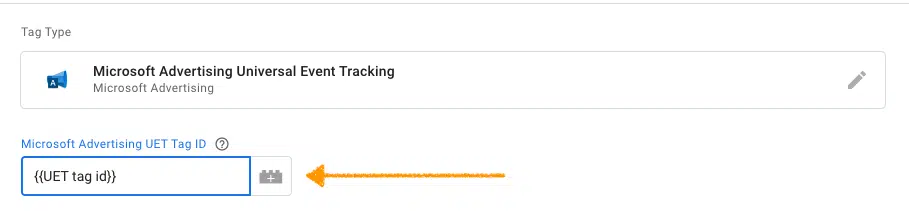
- In Track type select page view (required).
- In Consent settings, make sure Enable consent updates from GTM and Inherit initial consent from GTM are unchecked.

- In Triggering, select Page View.

- Click Save.
- Go to Templates > Tag Templates.
- Click Search Gallery.
- In Community Template Gallery, find and select Cookie Information + Consent Mode v2.
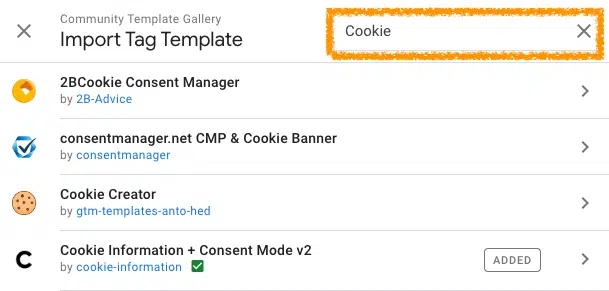
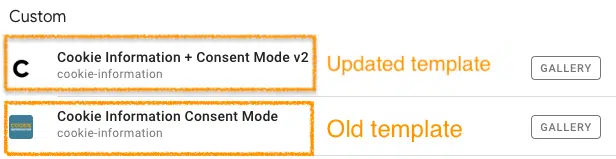
Note: Make sure you used our updated tag template, not the old one:
- In Variable Templates, Click Search Gallery.
- Find and select Cookie Information Consent State.
Note: You need to set up these two templates to manage consent and read consent signals.
- Go to Tags, click New.
- In Tag Configuration, find and select Cookie Information + Consent Mode v2.
- Select Add Cookie Information Consent Banner.
Step 2: Set up Microsoft UET Consent Mode
This part of the tutorial assumes you’ve already set up Google Consent Mode. If you haven’t please refer to our guide.
- In Triggering, choose Consent Initialization – All Pages.

- Click Save.
- Go to Templates > Search Gallery.
- Search and select Microsoft UET Consent Mode.

- Click Add to a workspace.
- Go Variables > User-Defined Variables.
- Click New.
- Select Cookie Information Consent State.
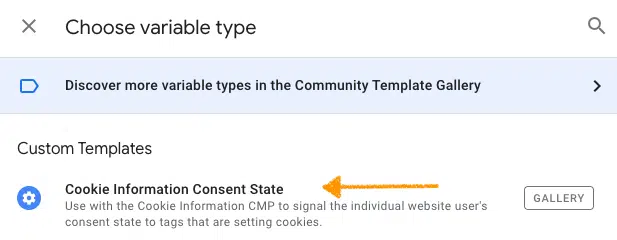
- In Consent Type, select
cookie_cat_marketing.

- Click Save.
- (Optional) You can rename the
variable ad_storage.

Note: This will be either true or false, depending on whether the user has declined or accepted cookies.
- Click Save.
- Go to Tags, click New.
- Search for and select Microsoft UET Consent Mode.

- In Consent command, set
default. - In Wait for Update, set
15000 milliseconds(15 seconds).

- In ad_storage status, set
denied. - (Optional) Select Set Clarity Consent.

Note: Select Set Clarity Consent if you’re using Microsoft Clarity.
- In Triggering, choose the trigger Consent Initialization – All Pages.
- Rename the tag Microsoft UET Consent Mode – default.
- Click Save.
- In Tags, click New.
- In Tag Configuration find and select Microsoft UET Consent Mode.

- In Consent command, select update.
- In ad_storage status choose
{{ad_storage}}.
Note: The {{ad_storage}} variable is the Cookie Information Consent State variable template.
- (Optional) Select Set Clarity Consent.
Note: Select Set Clarity Consent if you’re using Microsoft Clarity.
- In Triggering, click Choose a trigger.
- Click the + plus icon.
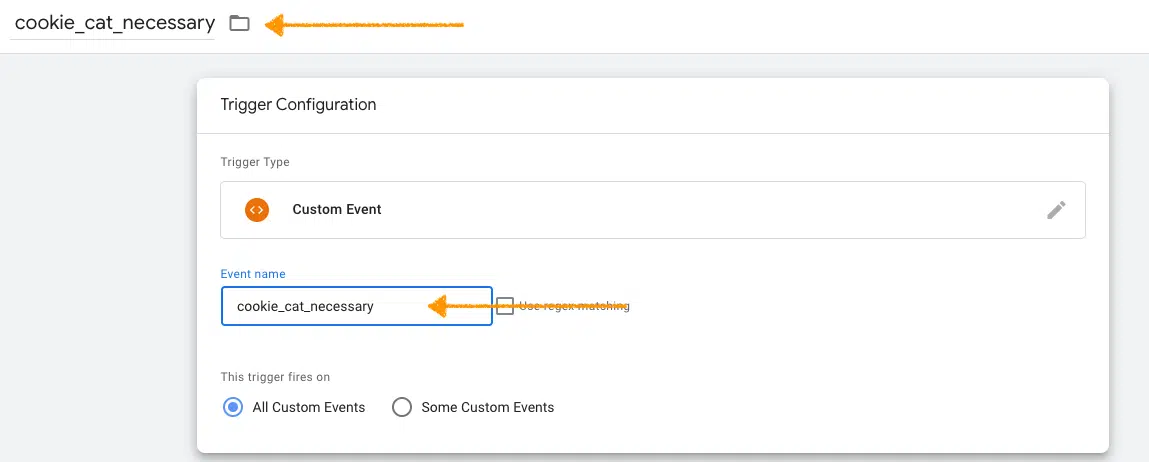
- In Trigger Configuration, search and select Custom Event.
- In Event name, type
cookie_cat_necessary.
- Click Save.
- Rename the tag Microsoft UET Consent Mode – update.

- Click Save.
All set!
Frequently asked questions about Microsoft Advertising and UET Consent Mode
Microsoft Universal Event Tracking (UET) is a tracking system that collects data on user interactions with your website. It helps measure conversions, build remarketing lists, and optimize ad performance in Microsoft Advertising.
UET Consent Mode is a feature that adjusts how Microsoft UET tags collect and process data based on user consent. It ensures compliance with privacy laws like GDPR and the ePrivacy Directive.
Yes. If you use Microsoft Advertising in the EEA, UK, or Switzerland, you must implement UET Consent Mode to continue tracking conversions and using remarketing features.
UET allows you to track website actions like purchases, sign-ups, and downloads. This data helps improve ad targeting, measure campaign effectiveness, and refine your marketing strategy.
Microsoft Consent Mode is mandatory since May 5, 2025. From this date, Microsoft Advertising stops tracking UET-based conversions and updating remarketing lists if the UET consent setting is not correctly implemented.
If you don’t implement UET Consent Mode, Microsoft Advertising will stop tracking conversions and updating remarketing lists, which could impact your campaign performance.


